Parametric Design in BIM: Unlocking Creativity and Efficiency in Architectural Practice

Parametric design has been part of the Revit conversation for years. But for many firms, it still lives at the edges of practice — used by a few specialists, misunderstood by the rest of the team, and rarely standardized across projects.

That's a real missed opportunity, and the case for fixing it has only grown stronger.

What parametric families actually do

At its core, parametric design in Revit means building components that respond to change. A door family with properly set parameters will update its frame, panel, and clearances automatically when its width is adjusted. A curtain wall system built with conditional logic will adapt its mullion spacing as the overall panel dimensions shift.

This matters because it removes manual rework from the equation. When a client changes a specification or a design direction shifts, parametric families absorb that change without requiring someone to redraw anything.

Beyond geometry, parametric families can carry data — material specs, fire ratings, manufacturer information, cost estimates. That embedded intelligence is what connects design models to downstream uses like cost estimation, facility management, and code review.

What's changed in Revit 2027

The parametric family environment in Revit 2027 gains meaningful support from the new Autodesk Assistant (Tech Preview). Previously, working with families — especially diagnosing why a formula wasn't behaving or why a parameter wasn't driving the expected result — required either deep experience or significant time spent troubleshooting. The Assistant can now be queried in natural language to help identify and resolve these issues from within the model environment.

For teams building or auditing parametric content, this changes how much experience is required to work confidently with complex families.

The Takeaway

Parametric families are one of the most underleveraged assets in Revit. Firms that invest in building and standardizing them well spend less time on rework, produce more consistent documentation, and have models that are genuinely useful beyond the design phase. Revit 2027 makes that investment more accessible — but the foundation still has to be built deliberately.

How Robotech Can Help

We offer hands-on training and custom development support for parametric family creation in Revit, tailored to your firm's project types and office standards:

  • Training on parametric family fundamentals: reference planes, dimension parameters, and formula logic

  • Custom family creation for components specific to your practice

  • Audit and cleanup of existing family libraries to remove duplicates and inconsistencies

  • Guidance on how to use Revit 2027's Autodesk Assistant to accelerate family development and troubleshooting

What’s New in Revit 2027: AI‑Powered, Connected, and Carbon‑Aware

What’s New in Revit 2027: AI‑Powered, Connected, and Carbon‑Aware

Revit 2027 is here, and it’s a big release. Autodesk has packed this version with AI‑driven assistance, deeper Autodesk Forma integration, richer data, and a long list of practical modeling and documentation upgrades that teams will actually feel in production.

Autodesk Assistant: AI Inside Your Revit Model

Autodesk Assistant is the headline feature in Revit 2027: an AI “copilot” that lives inside Revit and understands both your model and your intent. Instead of being just an online help search, it can query the model, automate tasks, and generate elements based on natural‑language prompts.

For newer or occasional Revit users, this lowers the barrier to getting useful work done. Someone who isn’t fully comfortable with all the dialogs and ribbon commands can type: “Create Level 3 floor plans, tag all rooms, and make a room schedule,” and the Assistant can orchestrate that workflow. It’s a way to get value from Revit without remembering every button and parameter.

For veteran users and BIM managers, the Assistant is a force multiplier rather than a crutch. It can help with:

  • Quick QA checks (“List all doors that don’t meet our fire rating standard.”)

  • Repetitive processing (batch renaming views, creating sheets, standard exports).

  • Model interrogation (“Which rooms have the wrong department code?”).

The net result is more time spent on design decisions and less on mechanical, repetitive steps.

Connected Workflows with Autodesk Forma

Revit 2027 also deepens its integration with Autodesk Forma, extending BIM beyond a single desktop file into a connected cloud ecosystem.

Key Forma‑related updates include:

  • Forma Connected Client (tech preview): You can see the same project data in Revit and Forma without constant exports and imports, enriching your model with real‑world context like terrain, surroundings, and environmental data.

  • Bundled Forma access: Revit subscriptions now include Forma Data Management Essentials, Site Design, Building Design, and Forma Board, establishing a shared data backbone from early site studies to detailed design.

  • Direct sustainability workflows: From the Analyze tab you can tap Forma wind analysis and carbon insights, bringing early‑stage performance feedback into everyday Revit workflows.

This shift from “disconnected tools” to a connected environment is one of the most important strategic changes in the Revit 2027 generation.

Smarter Carbon and Analysis Tools

Sustainability targets used to live mostly in slide decks and certification checklists. Revit 2027 brings carbon and performance closer to the core design workflow, which benefits both designers and owners responsible for portfolio‑level ESG commitments.

With direct access to carbon insights from within Revit, design teams can evaluate embodied and operational carbon as part of iterative design—swapping materials, massing, or systems and immediately seeing the impact. This makes carbon more like cost or area: a number that informs everyday trade‑offs instead of a retrospective report.

The new Carbon asset in Materials, connected to widely used carbon databases, gives each material a quantifiable footprint. That’s valuable in several ways:

  • Designers can favor lower‑carbon options without leaving Revit.

  • Specification teams can align material choices with carbon targets.

  • Facilities and sustainability teams can understand the embodied carbon “locked into” their assets from day one.

For owners running large portfolios, this becomes another dimension of data they can track across projects and over time.

Everyday Modeling and Documentation Upgrades

As BIM has matured, one pain point has remained constant: the tug‑of‑war between the design model and all the external spreadsheets, databases, and bespoke property sets that live alongside it. Revit 2027 leans into solving this with richer, more structured data capabilities.

Extended Properties allow you to store additional data that can be governed in the cloud but used directly inside Revit. For architecture firms, this means you can align model parameters with project standards and external systems more cleanly, reducing ad‑hoc shared parameters that no one can track.

For facilities management clients, this is even more important. With Extended Properties and better parameter consistency:

  • Asset data (IDs, warranty info, service intervals) can be embedded in the model rather than spread across spreadsheets.

  • Handover models can be mapped more reliably into CAFM/CMMS platforms.

  • Space and asset information remains traceable from early design through operations.

In practical terms, that means fewer data‑entry headaches at occupancy and a stronger digital thread from design to maintenance.

Below are more details on particular "daily use" enhancements that will quietly save time on almost every project:

Walls and UI refinements

  • Walls hosted on walls: You can now host one wall on another using a new Hosted Wall option, with Auto Join handling openings and cleaning up wall lines automatically.

  • Modernized interface: The legacy Options Bar is removed or relocated into the ribbon, simplifying the UI and reducing visual clutter in the drawing area.

  • Faster, smoother graphics: Revit 2027 improves accelerated graphics performance, including better handling of section boxes and linked models, plus faster opening of large projects with lower memory use.

Tagging, numbering, and annotation

  • Rule‑based numbering: A new rule‑driven numbering tool extends beyond rebar to general elements, supporting consistent numbering for doors, rooms, details, and more.

  • Tag leader enhancements: Tag leaders behave more predictably, with improved controls for multi‑category tags and better behavior when tagging complex assemblies.

  • Stair tread/riser annotations: Tread and riser numbering is now driven by type parameters, with separate control above and below cut lines in plans, reducing the need for view‑specific overrides.

  • Linked model lineweight control: You get more refined control over how linked models display, including lineweights, which helps maintain graphic standards across multi‑model projects.

These changes don’t grab headlines like AI, but they directly impact sheet production and model hygiene in everyday work.

Structural and MEP Enhancements

Revit 2027 also makes meaningful improvements for structural and MEP teams, particularly around analytical modeling and reinforcement.

For structure:

  • Analytical model automation: The analytical model updates more reliably from physical changes while preserving connectivity, loads, and boundary conditions, reducing rework before export to analysis tools.

  • Concrete and rebar workflows: A dedicated Concrete tab, automatic section property calculations for beams and columns, improved rebar sets, and upgraded rebar spacing and splicing logic all help with constructible reinforcement modeling.

  • Consistent behavior across LODs: Steel elements now behave more consistently as you move between levels of detail, improving both coordination and documentation.

For MEP:

  • System‑zones and loads: HVAC zones evolve into more intelligent “System‑Zones,” with corresponding improvements in heating and cooling load analysis.

  • Fabrication and content: Editing and documentation of MEP fabrication parts is smoother, and the MEP content editor receives refinements for more efficient content creation.

Underlying all of this, Dynamo and automation capabilities see performance and platform updates, supporting more robust scripting across disciplines.

Performance, Large Models, and Connected Workflows

Finally, Revit 2027 makes tangible improvements to the feel of working in large, complex projects—exactly the kind of models that both design teams and facilities departments rely on.

Performance optimizations mean:

  • Large, linked models open faster and use less memory.

  • Section boxes and 3D views are more responsive when navigating big federated models.

  • Graphic display is smoother in typical production views.

For architecture teams, this means fewer slowdowns during coordination and fewer “coffee breaks” while models open. For facilities teams working with as‑built or digital twin models, it makes navigation feasible on everyday hardware.

The deeper integration with cloud‑based tools also matters here. Early‑stage site and massing work in complementary platforms can feed into Revit more fluidly, while analysis (energy, wind, carbon) feels like part of the same ecosystem rather than a separate, one‑off workflow. That connectedness is what allows information created during design to remain useful during operations.

Robotech CAD Solutions can help your teams get the most out of Revit 2027 with targeted training for both new and experienced users. We also provide licensing and implementation support to streamline your upgrade.
Ready to move forward?

Revit Tutorial: Creating a Simple Parametric Window Family in Revit

Revit Tutorial: Creating a Simple Parametric Window Family in Revit

Parametric families are essential for architects who want flexibility and precision in their Revit projects. This step-by-step tutorial will guide you through creating a basic, yet fully parametric, window family in Revit—perfect for both beginners and those looking to refresh their skills. By building a window family with adjustable height and width, you can quickly adapt your designs to meet different project requirements and client preferences.

Step 1: Start a New Window Family

Open Revit and go to the File menu. Select New > Family. In the template selection dialog, choose Window.rft. This template is specifically set up for window families and includes the necessary wall host and reference planes.

Step 2: Set Up Reference Planes

Once inside the Family Editor, you’ll see default reference planes for the center (Left/Right and Front/Back). To define the window’s size, add two additional vertical reference planes for the left and right edges, and two horizontal reference planes for the top and bottom edges. Use the Reference Plane tool from the Create tab. Name your new planes “Left,” “Right,” “Top,” and “Bottom” for clarity.

Step 3: Add and Label Dimensions

Use the Aligned Dimension tool to add dimensions between the “Left” and “Right” planes (width), and between the “Top” and “Bottom” planes (height). Select each dimension, click Label, and choose <Add parameter…>. Name these parameters “Window Width” and “Window Height.” Set them as Type parameters so you can create multiple window sizes later.

Step 4: Create the Window Opening

Select the Create tab and choose Void Form > Void Extrusion. Draw a rectangle that snaps to your “Left,” “Right,” “Top,” and “Bottom” reference planes. Lock each side of the rectangle to the corresponding reference plane by clicking the padlock icon. Set the extrusion depth to match the wall thickness or as desired (typically 6" or 150mm).

Step 5: Add Window Frame Geometry

Next, create the window frame. Use the Solid Extrusion tool to draw a rectangle slightly larger than the void opening, then use another rectangle inside to create the frame’s thickness (for example, 2" or 50mm). Lock the outer rectangle to the “Left,” “Right,” “Top,” and “Bottom” planes, and set the frame thickness using an Offset or by locking to additional reference planes if you want the frame thickness to be parametric as well.

Step 6: Add Glass Panel

Create another Solid Extrusion for the glass panel. Draw a rectangle inside the frame, locking it to the inner edges of the frame reference planes. Assign a glass material by selecting the extrusion, going to the Properties palette, clicking the small box next to Material, and creating a new parameter called “Glass Material.”

Step 7: Flex Your Family

Before finishing, always “flex” your family to ensure the parameters work. Open the Family Types dialog, change the “Window Width” and “Window Height” values, and click Apply. Confirm that the geometry resizes correctly and remains properly constrained. Adjust any constraints or locks as needed.

Step 8: Add Family Types and Save

In the Family Types dialog, create a few different window sizes by clicking New Type and entering different values for width and height. Save your family, then click Load into Project to use your new window in any Revit model.

---

Learn More About Parametric Design with Robotech CAD Solutions

Robotech CAD Solutions offers expert-led classes to help you master parametric family creation in Revit, including windows, doors, and other essential architectural components. Their hands-on training covers everything from basic family setup to advanced parametric controls and best practices. Whether you’re new to Revit or seeking to refine your skills, Robotech’s courses provide the guidance and support you need to create powerful, flexible families that enhance your architectural workflow. Explore Robotech’s training programs to unlock the full potential of parametric design in your projects.

Happy modeling!

If you have any questions about Revit or Revit Family Creation, feel free to leave a comment down below and one of our instructors can reach out.

Revit Tutorial: Using View Range Settings in Revit to Control Visibility in Floor Plan Views

Revit Tutorial: Using View Range Settings in Revit to Control Visibility in Floor Plan Views

Welcome to this beginner-friendly tutorial on using View Range settings in Autodesk Revit! View Range is a powerful tool that allows you to control which elements are visible in your floor plan views. By the end of this tutorial, you’ll understand how to adjust these settings to display exactly what you need in your drawings.

---

What is View Range?

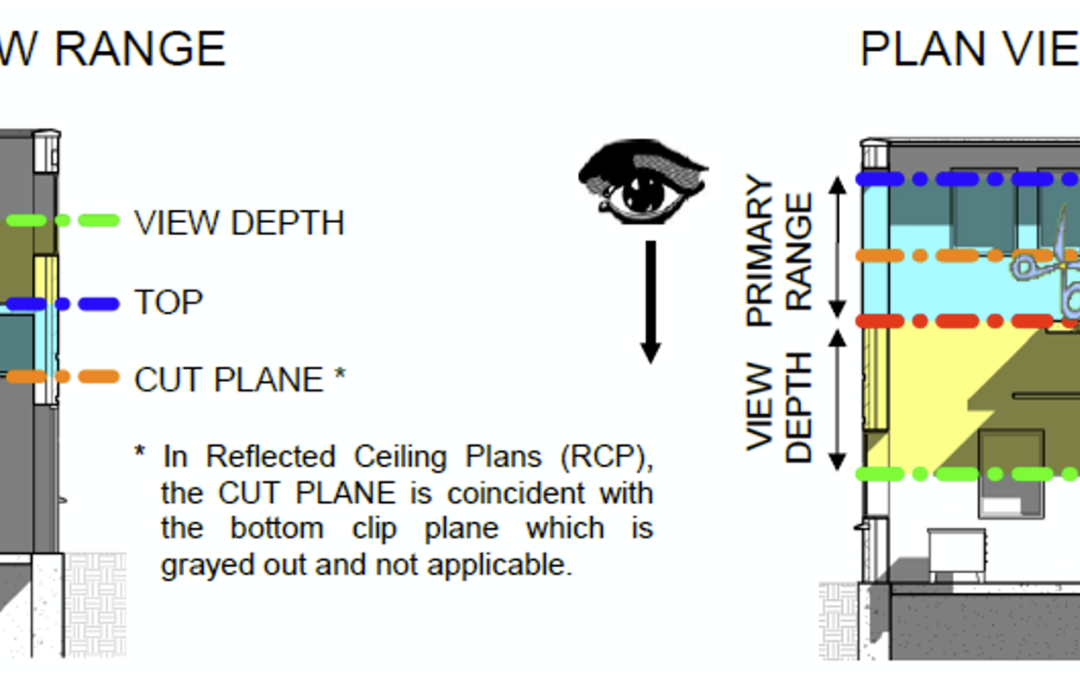
In Revit, the View Range determines how much of the model is visible in a floor plan view. It defines the vertical range (height) of the view and controls which elements are cut, visible, or hidden. Think of it as a "slice" through your building model at a specific height.

--

Key Components of View Range

The View Range settings consist of four primary planes:

  1. Primary Range

- Top: Defines the upper limit of the view.

- Cut Plane: Defines the height at which elements are "cut" (e.g., walls, doors, windows).

- Bottom: Defines the lower limit of the view.

  1. View Depth: Extends below the Bottom plane to show additional elements (e.g., foundations or floor slabs).

---

Step-by-Step Guide to Adjusting View Range


Step 1: Open a Floor Plan View

  1. Open your Revit project.
  2. Navigate to the floor plan view you want to adjust.

---

Step 2: Access View Range Settings

  1. In the Properties palette, scroll down to the Extents section.
  2. Click on View Range to open the View Range dialog box.

---

Step 3: Understand the View Range Dialog Box

The dialog box will display the following fields:

- Top: Set this to the highest level you want to see in the view (e.g., the level above).

- Cut Plane: Set this to the height where elements are cut (typically 4 feet for floor plans).

- Bottom: Set this to the lowest level you want to see in the view (e.g., the current level).

- View Depth: Set this to extend below the Bottom plane if you want to see additional elements.

---

Step 4: Adjust the Settings

  1. Set the Cut Plane: For most floor plans, set the Cut Plane to 4 feet (1200 mm) to cut through doors and windows.
  2. Adjust the Top and Bottom: Set the Top to the level above and the Bottom to the current level.
  3. Extend the View Depth: If you want to see elements below the floor (e.g., foundations), set the View Depth below the Bottom plane.

---

Step 5: Apply and Check the Results

  1. Click OK to apply the settings.
  2. Review your floor plan to ensure the desired elements are visible.

---

Tips for Beginners 

- Experiment: Don’t be afraid to adjust the settings and see how they affect your view.

- Use Defaults: Start with the default settings and tweak them as needed.

- Check Visibility Graphics: If elements are still not visible, ensure they are not hidden in the Visibility/Graphics settings.

---

Visual Aid

The images below are an example of how the View Range dialog box looks and how it affects a floor plan view: 

---

Conclusion 

Mastering the View Range settings in Revit is essential for creating accurate and clear floor plan views. By following this tutorial, you should now feel confident in adjusting these settings to control the visibility of elements in your projects.

Happy modeling!

If you have any questions about Revit or access the View Range, feel free to leave a comment down below and one of our instructors can reach out.

What’s New in Revit 2024.1.1

What’s New in Revit 2024.1.1

Autodesk has recently released a new update for Revit 2024 that addresses 25 quality issues improving functionality and stability. This is an important update for all Revit 2024 (all versions) users, and we recommend that everyone using a 2024 version, update to this version as soon as possible.

What can you expect from this update?

The update addresses an extensible storage schema issue affecting addons and projects that are upgraded for Revit 2024.

This update is especially important for worksharing users that all project team members are using this release of Revit or higher. Why? To avoid the possibility of older versions of Revit 2024 reintroducing this problem back to the project teams’ model.

This update also provides several other fixes and performance improvements.

Dealing with the variety of projects and systems in the Revit world comes with many unknowns, so our support team continues to work with you to relay any issues to us.

Functionality Fixes:

  • Fixed an issue when an element with Entity attached is operated by a user in an upgraded file and a previous version file is opened in the same session containing the same schema.
  • Fixed an issue related to the graph nodes functionality in Dynamo for Revit.
  • Fixed an issue to assign unique GUIDs to part that have stored GUIDs to prevent duplicates.
  • Fixed an issue when reloading versioned parts so they retain size and description parameter values.
  • Fixed an issue to retain element GUIDs when changing the element type using the type selector.
  • Improved stability when upgrading models with P&ID elements.
  • Fixed an issue in which Revit could potentially produce empty or invalid geometry when importing an elliptical cone or cylinder from DWG, DGN, or DXF files.
  • Fixed an issue where the Interference Check tool was disabled when the Shared Views Palette was opened.
  • Fixed an issue where project parameters with similar names written with different case letters didn’t show in the element properties or type dialog.
  • Fixed an issue where the Version History page for Revit Cloud Workshared models would only display the last 1000 versions.
  • Fixed elements on sheet cannot be edited with work shared when a schedule on sheet is filtered by sheet.
  • Fixed an issue with Create Similar on Toposurface elements.
  • Fixed an issue where some old models could not upgrade using Revit 2024.1.

Stability and Performance Fixes:

  • Prevented potential stability issues due to periodic spline-based surfaces created from imported or linked CAD geometry.
  • Improved stability when upgrading a model.
  • Improved stability when importing or linking PDF files.
  • Improved Personal Accelerator’s cleanup behavior when it is tracking many models.
  • Improved stability when creating a ceiling in a ceiling plan.
  • Improved stability when dragging or flipping MEP family connector grip controls.
  • Improved stability by disabling the user modification of an air terminal’s flow value when the flow parameter is defined in a formula.
  • Improved the performance and stability of flow and pressure drop calculations of fabrication models containing many networks.
  • Improved stability when some duct and pipe systems were deleted after the sizing operation.
  • Improved stability when editing a panel schedule template.
  • Improved stability when placing line boundary conditions on curved analytical panels.
  • Fixed an issue that could result in poor stability when using the Change Service feature on large selections of ductwork.
Introducing Revit 2024

Introducing Revit 2024

Revit 2024 has just been released, and with it are a lot of exciting new additions and improvements to existing features. We've highlighted several of the latest features you'll come across.

To see all this in video format, click here: [link coming soon!]


Design productivity

  • My Insights in Revit Home
  • Dark Theme
  • New Imperial and Metric Templates
  • New sample model
  • Modernized Project Browser with new Search
  • Height parameter in scope box
  • Color Books browser
  • Textures visual style
  • Revit to Twinmotion enhancements
  • Site design – Icon reorg for Massing and Site
  • Site design – Create Toposolid
  • Site design – Generate Toposolid from Toposurface
  • Site design – Linked Topography enhancements
  • Site design – Contour Display settings per Types
  • Site design – Cut geometry enhancement & Mass Cut excavations
  • Site design – Solid Sub-divisions 
  • Site design – Cut & Split Toposolids
  • Site design – Graded Regions
  • Site design – Show shape-edit control points
  • Site design – Floor-based families and Slab Edges on Toposolids
  • Site design – Exposed Toposolid API
  • New path alignment options for free form rebar
  • Stirrup orientation for aligned free form rebar
  • MEP fabrication ductwork stiffener
  • Pipe Wall thickness as a built-in parameter
  • Elevation parameters in visibility filters
  • Hide insulation with hosting duct and pipe
  • Parameters sorting in type/instance properties
  • Export ‘Family type’ parameter

Simulation & analysis

  • Sun Settings in the ribbon
  • Run Solar Studies with seconds intervals
  • Sun Paths in perspective views
  • Generate energy model by view
  • Enhanced structural analytical loads
  • Structural area loads with color coding
  • Custom physical-analytical association
  • Detailed results for connection automation rules
  • Non-coincident loads for electrical analytical components
  • Flow and pressure calculations added to MEP fabrication network
  • Network based calculation for design ductwork
  • Demand loads for electrical analytical components
  • Flow and pressure drop calculations

Cloud data & interoperability

  • Link coordination models from Autodesk Docs
  • Manage links dialog for coordination models
  • Access properties of coordination model objects
  • Point snaps for coordination model objects
  • Collaboration cache relocation for cloud models
  • Link and Import PDF in Revit LT and Design Automation API
  • Revit to Robot Link enhancements

Design optimization

  • Dynamo for Revit 2.17 upgrade
  • Dynamo Player & Generative Design updates
  • Dynamo Player & Generative Design samples
  • Improved steel connections SDK documentation
  • Revit additional resizable dialogs
  • Revit Macro security improvements
  • API enhancements for developers

Documentation efficiency

  • Place multiple views and schedules on a sheet
  • Move aligned to sheet enhancements
  • Open sheet directly from drawing area
  • Schedule revision clouds
  • Align patterns on shaped-edited surfaces
  • Bar bending details on reinforcement drawings
  • Bar bending details in rebar schedules
  • 2D element draw order in 3D families
  • Resize all schedule rows
  • Enable removal of unit symbol for fraction inches

My Insights in Revit Home

  • New My Insights tab in Revit home page
  • Get personalized insights based on how you work and the work you do
  • Learn valuable information (new features, commands and workflows)
  • Display through cards
    • React to the cards
    • Learn more through the link in cards

Fresh from the Factory, Revit 2024 is rolling out globally! In this release, Autodesk has combined eagerly anticipated additions, like Site Tools for landscape designers, with highly requested enhancements from the community, like Dark Theme and a more modern user interface.

Here are three of the highlights from the new version:

Introducing Site Tools for Revit & Revit LT.

This new toolset supports the design and documentation of richly detailed landscapes. You can use Site Tools to:

  • Collect and rationalize existing conditions data from CAD Imports, CSV point files, and more.
  • Model your design intent freely and easily, with versatile site and massing tools for modeling topography.
  • Populate schedules, sheets, and views and calculate material quantities. Cut, fill, join, and run phasing scenarios. Use the design-to-documentation engine of Revit to save time and improve design quality when modeling landscape and site conditions.

Save time in concrete detailing.

Structural engineers and rebar detailers have new capabilities for creating, scheduling, and documenting rebar. Use the new bar bending details to:

  • Create reinforcement drawings and schedules with detailed fabrication instructions. With this new tool in Revit, when the model changes, the details adapt along with it.
  • Add and customize rebar bending details so that your views and sheets respect your typical practice.
  • Reduce errors and omissions in your document sets.

Evolve work together.

Link Coordination Model from Autodesk Docs into Revit makes it easier for project teams to sync and coordinate design deliverables. Keep project files light and teams on the same page.

  • Link models and views from any of the 60+ formats supported by Docs and the Autodesk Construction Cloud directly into Revit.
  • Underlay the coordination model as visual reference when designing in Revit.
  • Reduce the need for interpretation when coordinating up-to-date design deliverables with partners and project teams.